


.png)

Over 80 percent of british e-commerce businesses struggle with incomplete or inaccurate website tracking, which often leads to missed revenue opportunities. Setting up Google Tag Manager correctly is the first step toward gaining clear and actionable insights into your customer’s behaviour. This guide unlocks reliable methods and expert tips so your british store captures every vital metric with confidence from day one.
Table of Contents
- Step 1: Set Up Your Google Tag Manager Account
- Step 2: Integrate GTM with Your E-commerce Platform
- Step 3: Configure Essential Tags and Triggers
- Step 4: Implement Server-Side Tagging for Data Accuracy
- Step 5: Verify Tracking and Optimise Conversion Data
Quick Summary
| Key Point | Explanation |
|---|---|
| 1. Set Up Google Tag Manager Account | Create an account using a Google account and install the container code on every page of your site for accurate tracking. |
| 2. Integrate GTM with E-commerce Platform | Connect GTM with your platform like Shopify or WooCommerce to accurately capture user interaction and transaction data. |
| 3. Configure Tags and Triggers | Implement essential tags for events such as purchases and interactions, ensuring they are triggered at the right times. |
| 4. Implement Server-Side Tagging | Use server-side tagging to enhance data accuracy and user privacy by processing tracking information securely. |
| 5. Verify and Optimise Tracking | Thoroughly test tracking systems across platforms and ensure all parameters capture detailed transaction information correctly. |
Step 1: Set Up Your Google Tag Manager Account
Establishing your Google Tag Manager account is the foundational step for accurate e-commerce tracking. You will need a Google account and access to your website’s source code to complete this process.
Begin by navigating to the Google Tag Manager setup page and clicking the “Create Account” button. Enter a descriptive account name typically using your business or website name. Next, configure your first container by providing a container name and selecting the target platform (web, mobile app, or AMP). During container creation, Google will generate a unique container ID and provide implementation instructions for adding tracking codes to your website.
Pro tip: When installing the container snippet, ensure you place the provided JavaScript code in the head and body sections of every page. Incomplete implementation can lead to tracking gaps and inaccurate conversion data. After installation, verify your setup by checking the preview and debug mode in Google Tag Manager, which allows you to confirm tags are firing correctly before going live.
With your account established, you are now prepared to configure advanced tracking mechanisms for comprehensive e-commerce analytics.
Step 2: Integrate GTM with Your E-commerce Platform
Integrating Google Tag Manager with your e-commerce platform is a critical step in establishing robust conversion tracking. The process involves connecting your container and configuring specific tags to capture detailed transaction and user interaction data.
Start by accessing your e-commerce platform’s settings and identifying tracking integration points that align with Google Tag Manager’s requirements. Most popular platforms like Shopify, WooCommerce, and Magento offer straightforward integration methods. You will need to insert the GTM container code into your platform’s header and footer sections, typically through a dedicated tracking or scripts configuration area.
Pro tip: Verify your integration by enabling GTM’s preview mode and testing transaction-related events. Many e-commerce tracking errors occur during implementation, so meticulously check that purchase, checkout, and product view tags are firing correctly. Pay special attention to capturing key metrics like transaction value, product details, and customer journey touchpoints.
With your GTM integration complete, you have established a robust foundation for tracking and analysing your online sales performance.
Step 3: Configure Essential Tags and Triggers
Configuring essential tags and triggers in Google Tag Manager is fundamental to capturing comprehensive e-commerce tracking data. This process enables you to monitor critical user interactions, transaction details, and conversion events across your online platform.

Begin by implementing core tracking mechanisms that align with your specific e-commerce goals. Create tags for key events such as product page views, add-to-cart actions, checkout initiations, and completed purchases. Each tag should be paired with precise triggers that determine exactly when the tag fires. For instance, a purchase confirmation tag should trigger only when a successful transaction occurs, capturing critical details like transaction value, product identifiers, and customer information.
Pro tip: Validate your tag configuration meticulously. Use GTM’s preview and debug mode to confirm that tags are firing accurately and capturing the intended data points. Pay special attention to complex tracking scenarios like dynamic product information, multi-step checkout processes, and cross-device user journeys. Proper configuration ensures you capture granular insights that drive strategic marketing decisions.
With your tags and triggers expertly configured, you have established a robust tracking infrastructure for monitoring your e-commerce performance.
Step 4: Implement Server-Side Tagging for Data Accuracy
Server-side tagging represents a sophisticated approach to improving data tracking accuracy and performance in e-commerce environments. By shifting critical tracking processes from client-side to server-side infrastructure, you can significantly enhance data reliability and user privacy.
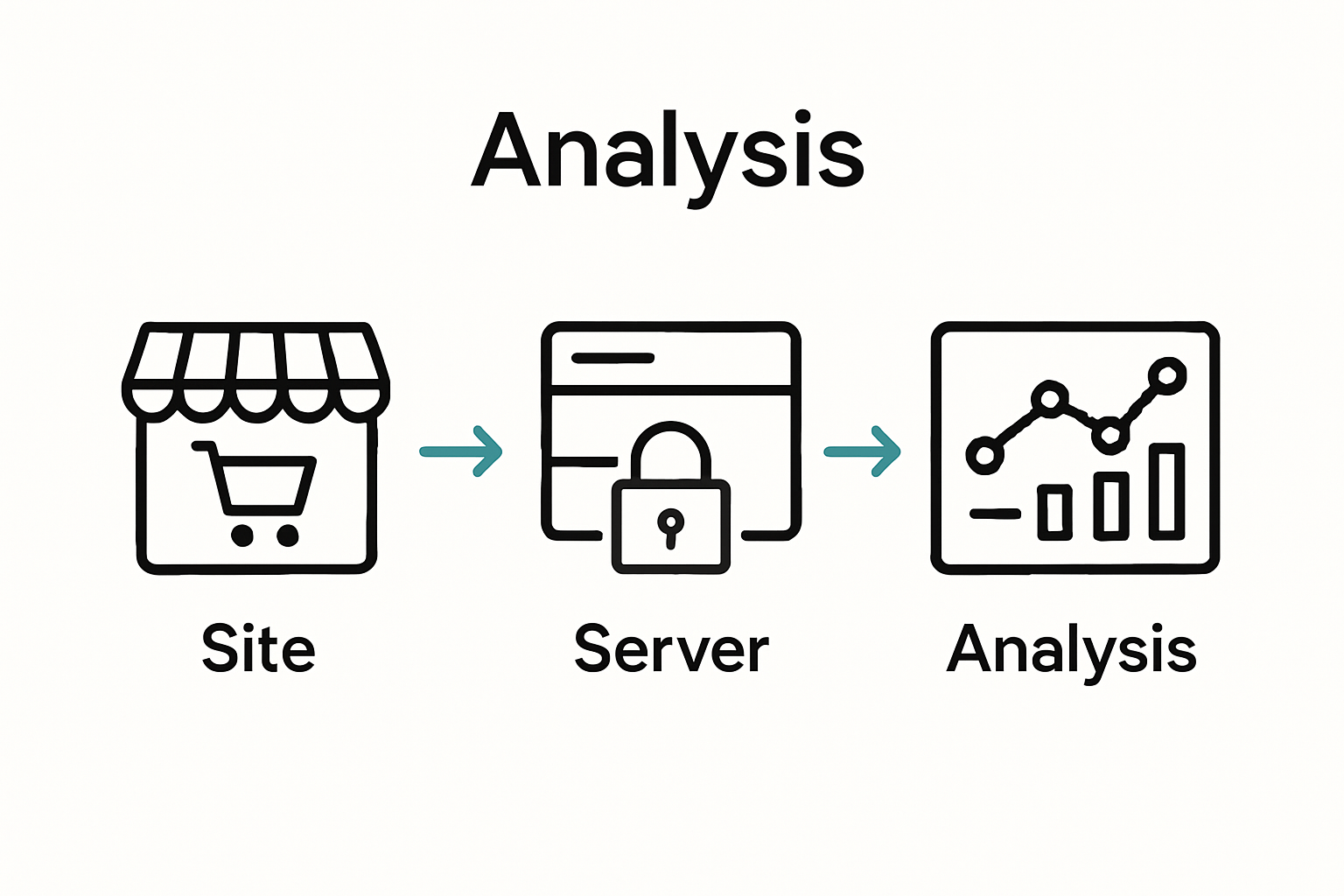
Initiate your server-side tagging implementation by exploring comprehensive server-side tracking strategies within your Google Tag Manager configuration. The process involves creating a server container, establishing secure data transmission protocols, and configuring server-side tags that process tracking information before it reaches third-party analytics platforms. This approach provides greater control over data collection, reduces client-side processing load, and mitigates the impact of ad blockers and privacy restrictions.
Pro tip: When implementing server-side tagging, prioritise data privacy and performance. Configure your server-side container to anonymise sensitive user information, implement robust data filtering mechanisms, and ensure compliance with global privacy regulations. Test your server-side tags meticulously to confirm accurate data transmission and minimal latency in tracking user interactions.
With server-side tagging successfully implemented, you have elevated your e-commerce tracking infrastructure to deliver more precise and reliable analytics.
Step 5: Verify Tracking and Optimise Conversion Data
Verifying and optimising tracking performance is crucial for extracting meaningful insights from your e-commerce analytics. This final stage ensures that your meticulously configured tracking system delivers accurate and actionable conversion data.
Begin by implementing comprehensive tracking verification strategies using Google Tag Manager’s preview and debug modes. Systematically test each tag by simulating user interactions across different conversion paths. Pay close attention to key events such as product views, add-to-cart actions, checkout processes, and final purchase completions. Validate that all tracking parameters capture precise transaction details, including revenue values, product identifiers, and customer segment information.
Pro tip: Conduct thorough cross-platform testing to ensure consistent tracking performance. Verify your implementation functions correctly across multiple devices, browsers, and user scenarios. Use browser developer tools and Google Tag Manager’s real-time reporting to identify and resolve any potential tracking discrepancies. Consider implementing additional validation checks, such as comparing data between Google Tag Manager, Google Analytics, and your e-commerce platform’s native reporting systems.
With your tracking system comprehensively verified, you have established a robust foundation for data driven marketing strategies.
Enhance Your E-commerce Tracking Accuracy Today
Struggling with incomplete data and tracking gaps can undermine your ability to make confident marketing decisions. This article highlights how setting up Google Tag Manager correctly and implementing server-side tagging are crucial for capturing reliable conversion data. If you want to eliminate data loss, accurately monitor every customer interaction, and boost your online sales performance you need a solution designed to solve these exact challenges.

Discover how AdPage can transform your e-commerce tracking through advanced server-side tagging, seamless integration with platforms like Shopify and WooCommerce, and robust data compliance features. Our platform enables you to monitor 100 percent of your conversions and gain deeper insights into user behaviour. Don’t wait until inaccurate data limits your growth. Visit AdPage to explore our powerful tracking solutions and take control of your e-commerce analytics now. Learn more about setting up Google Tag Manager effectively and e-commerce platform integration with AdPage for a seamless optimisation journey.
Frequently Asked Questions
What is Google Tag Manager, and why is it important for e-commerce tracking?
Google Tag Manager is a tool that allows you to manage and deploy marketing tags on your website without modifying the code. It is important for e-commerce tracking because it enables accurate tracking of user interactions, such as purchases and product views, which helps optimise marketing efforts.
How do I set up my Google Tag Manager account for e-commerce tracking?
To set up your Google Tag Manager account, create an account using your business name, then create a container for your website. Follow the implementation instructions provided by Google, ensuring you place the code in the appropriate sections of your site to ensure proper tracking.
What tags should I implement for effective e-commerce tracking?
You should implement tags for key events such as product page views, add-to-cart actions, checkout initiations, and completed purchases. Ensure that each tag is linked to specific triggers that determine when the tag should fire, allowing for accurate data capture during user interactions.
How can I verify that my Google Tag Manager setup is working correctly?
You can verify your setup by using GTM’s preview and debug mode to test if your tags are firing properly. Simulate various user interactions, such as purchases and product views, to ensure all tracking parameters are accurately capturing data like transaction values and product details.
What is server-side tagging, and how can it improve my e-commerce tracking?
Server-side tagging moves tracking processes from the client-side to a server-side infrastructure, enhancing data reliability and performance. To implement it, create a server container and set up secure data transmission, which can improve data accuracy and reduce the effects of privacy measures and ad blockers.
How do I optimise conversion data once my tracking is set up?
To optimise conversion data, conduct thorough testing using GTM’s preview mode to ensure all tags are functioning correctly across various devices and browsers. Regularly compare data from Google Tag Manager with your e-commerce platform’s reports to identify discrepancies and improve data accuracy.