


.png)

Over half of online retailers report mistakes with tracking setup that cost them valuable sales insights. Ensuring your e-commerce platform captures every conversion is vital if you want to grow your business and make smart decisions. This guide walks you through the exact steps needed to set up Google Tag Manager, from prepping your website to verifying your data, so you can track every key action with confidence.
Table of Contents
- Step 1: Prepare Your E-commerce Platform And Account
- Step 2: Create And Configure Your Google Tag Manager Container
- Step 3: Install The Google Tag Manager Code On Your Website
- Step 4: Integrate E-commerce And Conversion Tracking Tags
- Step 5: Verify And Test Your Google Tag Manager Implementation
Quick Summary
| Key Point | Explanation |
|---|---|
| 1. Prepare your e-commerce platform | Ensure your platform supports third-party tracking to enable Google Tag Manager integration. |
| 2. Create a Google Tag Manager container | Set up a dedicated container for tracking codes, ensuring proper naming and platform selection. |
| 3. Install tracking code accurately | Insert Google Tag Manager code in the correct sections of your website to enable comprehensive tracking. |
| 4. Integrate e-commerce tracking tags | Configure specific tags for user interactions and transactions to monitor business performance effectively. |
| 5. Verify your implementation thoroughly | Conduct extensive testing of your tags using preview tools to ensure accurate data collection and functionality. |
Step 1: Prepare Your E-commerce Platform and Account
When setting up Google Tag Manager for conversion tracking, your first crucial step is preparing your e-commerce platform and account for seamless integration. This involves ensuring your platform supports third-party tracking scripts and creating the necessary accounts to enable comprehensive data collection.
According to dmanc, implementing tags through Google Tag Manager allows you to manage multiple tracking codes without requiring extensive web development support. Start by logging into your e-commerce platform’s admin dashboard and checking your website’s technical capabilities. You will want to confirm that your platform permits the insertion of custom JavaScript and HTML tracking scripts.
Some practical preparation steps include verifying your platform’s compatibility with Google Tag Manager, creating a dedicated Google account for analytics management, and ensuring you have administrative access to both your e-commerce platform and Google Tag Manager. Pro tip checking your platform’s specific documentation for any unique integration requirements can save significant time and prevent potential tracking complications down the line.
By methodically preparing your platform and account, you are setting a strong foundation for accurate conversion tracking that will provide valuable insights into your online business performance.
Step 2: Create and Configure Your Google Tag Manager Container
Configuring your Google Tag Manager container is a pivotal step in establishing robust conversion tracking for your e-commerce platform. This process involves creating a dedicated container that will house all your tracking tags and manage their deployment across your website.
According to nagw, setting up Google Tag Manager requires a systematic approach to account creation and code implementation. Begin by navigating to the Google Tag Manager website and signing in with your Google account. Click the “Create Account” button and provide a descriptive account name typically using your business or website name. When prompted to create a container, select a meaningful name that represents the specific website or platform you are tracking.
During container setup, choose the appropriate platform type web. You will receive a unique container code snippet that must be installed on every page of your website. This typically involves inserting two JavaScript code blocks into your website’s header and body sections ensuring comprehensive tracking coverage. A crucial pro tip is to test your container implementation using Google Tag Manager’s preview mode before publishing live to verify all tags are firing correctly.
With your container now created and configured, you have established the fundamental infrastructure needed for advanced conversion tracking and data insights across your digital platform.
Step 3: Install the Google Tag Manager Code on Your Website
Installing the Google Tag Manager code is a critical step that enables comprehensive tracking and data collection for your e-commerce platform. This process involves precisely embedding unique tracking snippets into your website to ensure accurate conversion monitoring.
According to dmanc, adding Google Tag Manager code requires careful placement across different content management systems. For most websites, you will need to insert two specific JavaScript code snippets: one in the head section and another immediately after the opening body tag. If you are using a platform like WordPress, you might use a dedicated plugin or access your theme’s header and footer files to implement these tracking codes.
The installation process varies depending on your website platform. For WordPress sites, navigate to Appearance > Theme Editor and locate the header.php file to insert the first snippet. In the body section, paste the second code snippet just after the opening body tag. When working with custom websites, you will manually add these code blocks directly into your HTML source code. A crucial pro tip is to verify your implementation using Google Tag Manager’s preview and debug mode to confirm that tags are firing correctly and no tracking data is being missed.
With the Google Tag Manager code successfully installed, you have established the technical foundation for capturing detailed insights about user interactions and conversion events on your digital platform.

Step 4: Integrate E-commerce and Conversion Tracking Tags
Integrating e-commerce and conversion tracking tags is the pivotal stage where you transform your Google Tag Manager setup into a powerful analytics tool for monitoring online business performance. This process involves configuring specific tags that capture critical user interaction and transaction data across your digital platform.
According to dmanc, efficiently managing multiple conversion tracking tags requires a strategic approach. Begin by navigating to your Google Tag Manager workspace and selecting the “Tags” section. Create a new tag specifically for e-commerce tracking by choosing the appropriate tag type such as Google Analytics 4 Event or Universal Analytics E-commerce. You will need to configure triggers that determine when these tags fire most typically on purchase confirmation pages or specific user interaction points.
For most e-commerce platforms, you will want to set up standard conversion tracking tags that capture key events like product views, add to cart actions, and completed purchases. A crucial pro tip is to use Google Tag Manager’s built in preview mode to test each tag and confirm they are firing correctly before publishing your configuration.
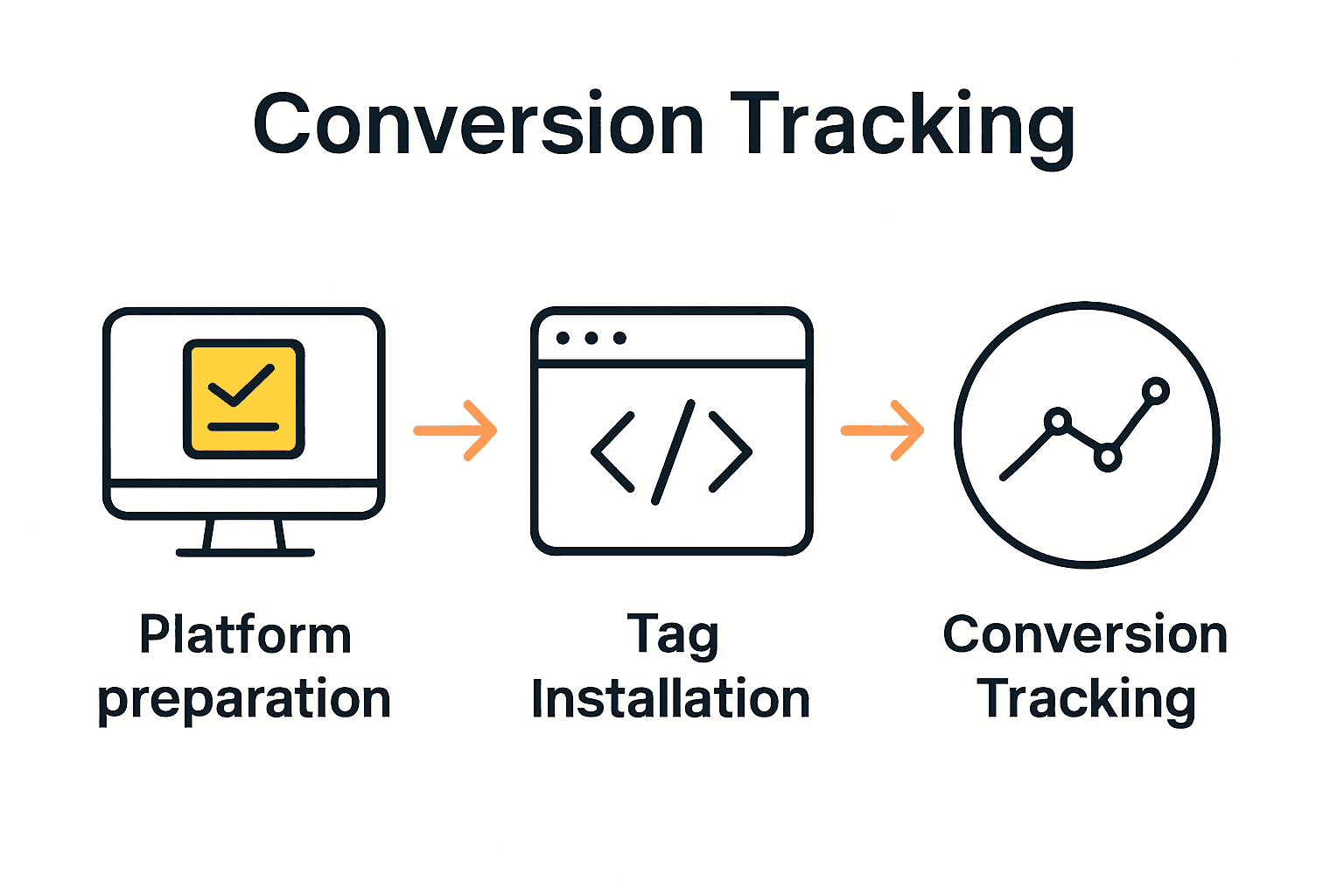 Consider creating separate tags for different conversion stages to gain granular insights into your customer journey and potential drop off points.
With your e-commerce and conversion tracking tags now integrated, you have established a robust system for collecting meaningful data that will drive strategic business decisions and help optimise your online revenue generation.
Step 5: Verify and Test Your Google Tag Manager Implementation
Verifying your Google Tag Manager implementation is a critical final step that ensures your tracking setup captures accurate and comprehensive data about user interactions and conversions. This process involves thoroughly testing each configured tag to confirm they are firing correctly and collecting the intended information.
According to nagw, testing your Google Tag Manager setup requires systematic use of preview and debugging tools. Begin by clicking the “Preview” button in your Google Tag Manager workspace which activates a special debugging mode. Navigate to your website in the same browser window and interact with various elements to simulate real user behaviour. The preview panel will display which tags are firing during each interaction allowing you to verify their precise execution and identify any potential tracking issues.
While testing, pay close attention to specific conversion events such as button clicks, page views, and transaction completions. Use the browser console and Google Tag Manager debug mode to inspect tag details including trigger conditions and data layer information. A crucial pro tip is to test across multiple device types and browsers to ensure consistent tracking performance. If you notice any discrepancies or tags not firing as expected, review your trigger configurations and tag settings to make necessary adjustments.
With a thoroughly tested Google Tag Manager implementation, you have created a robust analytics system that provides reliable insights into your e-commerce platform’s performance and user behaviour.
Boost Your Conversion Tracking with Advanced Tagging Solutions
Setting up Google Tag Manager is a vital step for clear conversion tracking but addressing challenges like incomplete data capture or complex tag management can hold you back. If you want to fully optimise your e-commerce analytics and confidently capture every user interaction, adopting server-side tagging and robust consent management is key. These methods help prevent data loss often faced with traditional tools and ensure your marketing decisions are based on reliable insights.

Take control of your tracking accuracy today by exploring how AdPage can elevate your Google Tag Manager setup. With seamless integration for platforms like Shopify, WooCommerce, and Magento, plus expert onboarding support, you will unlock full conversion visibility, GDPR compliance, and enhanced reporting capabilities. Don’t let inaccurate data stall your growth. Visit AdPage now and start transforming your conversion tracking into a powerful asset.
Frequently Asked Questions
How do I prepare my e-commerce platform for Google Tag Manager installation?
To prepare your e-commerce platform, ensure it supports third-party tracking scripts and allows custom JavaScript and HTML tracking codes. Verify your platform’s compatibility with Google Tag Manager and create a dedicated Google account for managing analytics.
What is the process for creating and configuring a Google Tag Manager container?
To create a Google Tag Manager container, sign in to Google Tag Manager, click “Create Account,” and enter a descriptive name. During setup, choose ‘Web’ as the platform type and install the unique container code snippet provided on every page of your website.
How do I install the Google Tag Manager code on my website?
Install the Google Tag Manager code by placing two JavaScript snippets: one in the head section and the other right after the opening body tag of your website. If using WordPress, navigate to the header.php file through the Theme Editor to add the code snippets.
What types of tags should I integrate for e-commerce conversion tracking?
Integrate tags that capture essential user interactions like product views, add to cart actions, and completed purchases. Set up specific conversion tracking tags within Google Tag Manager to monitor these critical activities and enhance your data collection.
How can I test my Google Tag Manager implementation for accuracy?
To test your Google Tag Manager implementation, use the preview mode in your workspace to activate debugging. Interact with different elements on your website to see which tags are firing and ensure they capture the intended data accurately.
What common issues should I look for when verifying my Google Tag Manager setup?
When verifying your setup, look for any discrepancies in tag firing, especially for key conversion events. Pay attention to trigger configurations and test across multiple devices to ensure consistent tracking performance and correct any identified issues.